WordPress Plugins for Business Website
Which WordPress Plugins for Business Website Should You Use?
WordPress plugins for business website setup should be chosen by purpose, not by habit. First, decide what your website needs. Next, choose one plugin for each job. After that, install only the plugins that help with SEO, speed, contact forms, backup, security, analytics, or a specific business feature.
Use this guide before installing plugins. Too many plugins can slow down a website or create conflicts. As a result, the smart approach is to choose a small, useful set based on website type.
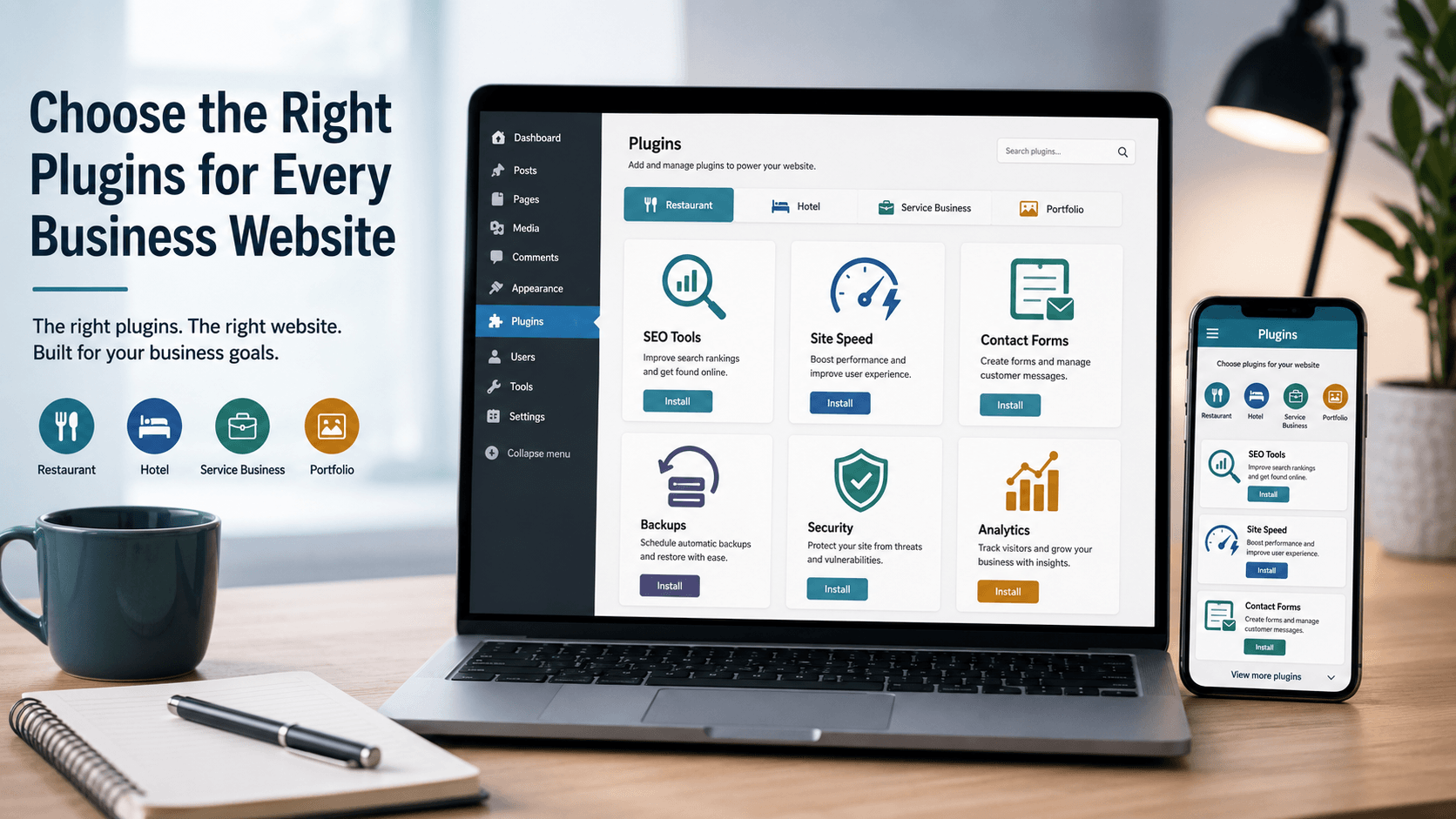
Plugin Mindset
Choose WordPress Plugins for Business Website Needs, Not Trends
A good plugin setup is simple. It covers the important jobs without making the website heavy. Therefore, this guide groups plugins by real business needs: search, speed, contact, backup, security, analytics, and website type.
SEO
First, SEO helps search engines understand important pages.
Speed
Next, speed tools help pages load better when configured carefully.
Contact
Also, contact tools help visitors send enquiries from the website.
Protection
Finally, backup and login tools support basic website care.
14-Chapter Plan
A Simple WordPress Plugins for Business Website Plan
Start with the basic plugin jobs first. After that, add business-specific plugins only if the website really needs them.
Different Websites
First, understand why plugin needs change.
Basic Stack
Next, choose a lean starting setup.
SEO Plugin
Then, use one SEO plugin, not many.
Speed Plugin
After that, choose cache based on hosting.
Form Plugin
Also, add contact forms carefully.
Google Tools
Meanwhile, connect search and analytics data.
Backup
Before updates, keep recovery options ready.
Security
In addition, protect login and files.
Restaurant
For restaurants, choose menu and contact tools.
Hotel or Villa
For stays, think enquiry, gallery, and booking path.
Service Business
For services, use forms, SEO, proof, and pricing flow.
Portfolio
For portfolio pages, show work without slowing pages.
Avoid Overload
However, remove tools that do not help.
Final Checklist
Finally, review everything before launch.
01 Website Type
Why Every Website Does Not Need the Same Plugins
A restaurant website, hotel website, service website, and portfolio website do not work the same way. Therefore, WordPress plugins for business website setup should match the website goal. A restaurant may need menu and map support, while a service business may need better forms, service pages, and SEO structure.
Start with these questions
- What should visitors do on the website?
- Do you need calls, forms, WhatsApp, bookings, or map directions?
- Will you publish blog posts?
- Do you need portfolio, menu, gallery, or pricing pages?
- Can your hosting already handle cache, backup, or security?
Know the website purpose.
Choose only needed features.
Check speed and layout after install.
02 Basic Stack
Basic WordPress Plugins for Business Website Setup
Most business websites can start with a small plugin stack. However, do not install all tools blindly. If your hosting or theme already handles a job well, you may not need another plugin for the same job.
| Need | Plugin example | Plugin directory link | Use when |
|---|---|---|---|
| SEO | Yoast SEO | WordPress plugin directory | Use it when you want titles, meta descriptions, sitemap, and basic SEO checks for WordPress plugins for business website setup. |
| Speed | LiteSpeed Cache | WordPress plugin directory | Your server supports LiteSpeed or QUIC.cloud features. |
| Forms | Contact Form 7 | WordPress plugin directory | You need simple contact or enquiry forms. |
| Google tools | Site Kit by Google | WordPress plugin directory | You want Search Console and analytics connection in WordPress. |
| Backup | UpdraftPlus | WordPress plugin directory | You need a plugin-based backup option. |
| Security | Wordfence Security | WordPress plugin directory | You need login protection, scanning, and firewall-style controls. |
03 SEO
SEO Plugin for WordPress Plugins for Business Website Setup
An SEO plugin helps you set SEO titles, meta descriptions, sitemaps, breadcrumbs, social previews, and search settings. For beginners, one SEO plugin is enough. However, do not install multiple SEO plugins because they may overlap.
Use an SEO plugin for
- SEO title and meta description.
- XML sitemap.
- Focus keyphrase guidance.
- Page readability checks.
- Canonical and social preview settings.
Example
First, set titles and descriptions for Home, Services, Contact, and key blog posts.
04 Speed
Speed Plugin for WordPress Plugins for Business Website Setup
Speed plugins can help with cache, CSS, JavaScript, images, and page delivery. However, settings matter. A cache plugin with wrong settings can break layout, so change one setting at a time and test the site after each important change.
Speed plugin checks
- Page cache is enabled.
- Images are optimized.
- WebP replacement works if enabled.
- CSS and JavaScript settings do not break design.
- Mobile speed is tested after changes.
Use LiteSpeed Cache mainly when your hosting supports it well.
05 Forms
Contact Form Plugin for WordPress Plugins for Business Website Setup
A contact form plugin helps visitors send enquiries. Also, short forms usually work better for basic questions. However, a long form can reduce submissions if the visitor is only asking a simple question. Therefore, ask for only the details you truly need.
Basic form fields
- Name.
- Phone or email.
- Service needed.
- Short message.
- Consent checkbox if your policy needs it.
After setup, test form emails instead of assuming they are working.
06 Google
Google Tools Plugin for Search and Analytics
Site Kit by Google can connect Search Console, Analytics, PageSpeed Insights, and other Google tools from the WordPress dashboard. This can help beginners see search and traffic data without moving between many screens.
Use Google tools for
- Search Console connection.
- Analytics data.
- PageSpeed checks.
- Search performance review.
Connect only the tools you understand and plan to check.
07 Backup
Backup Plugin for WordPress Plugins for Business Website Setup
Backups are important because websites can break during updates, plugin conflicts, hosting issues, or accidental edits. If your hosting already has reliable backups, check how to restore them. Otherwise, a backup plugin can be useful.
Backup checklist
- Know where backups are stored.
- Check how often backups run.
- Test restore process on a safe setup if possible.
- Keep a backup before major updates.
Example
08 Security
Security Plugin for Basic Protection
A security plugin can help with login protection, scans, firewall-style rules, and activity checks. Still, plugins are not a replacement for strong passwords, updates, backups, and careful admin access.
Security basics
- First, use a strong admin password.
- Also, avoid sharing admin access casually.
- Next, update plugins and themes carefully.
- After that, remove unused plugins.
- Finally, keep backups ready.
09 Restaurant
WordPress Plugins for Restaurant Website Needs
A restaurant website should make menu, location, phone, WhatsApp, and opening hours easy to find. Therefore, plugin choice should support menu display, contact flow, SEO, speed, and Google visibility.
Restaurant plugin needs
- SEO plugin for menu and location pages.
- Cache plugin for speed.
- Form plugin for enquiries or events.
- Map or Google Business Profile connection.
- Menu layout can be built with blocks if a separate plugin is not needed.
Menu
Readable menu page.
Contact
Call, map, and WhatsApp.
10 Hotel
WordPress Plugins for Hotel or Villa Websites
A hotel or villa website needs rooms, gallery, amenities, location, and enquiry flow. If online booking is required, choose booking tools carefully. However, if the business only needs enquiries, a clear form and WhatsApp button may be enough.
Hotel or villa plugin needs
- Gallery or image optimization support.
- Contact form for stay enquiries.
- SEO plugin for room and location pages.
- Cache plugin for image-heavy pages.
- Booking plugin only if the business will manage bookings through the website.
Gallery
Show rooms and spaces.
Form
Collect stay enquiries.
11 Service
WordPress Plugins for Service Business Websites
A service business website needs service pages, proof, pricing guidance, contact forms, SEO, and tracking. As a result, the plugin stack should focus on search visibility and enquiries rather than decorative features.
Service business plugin needs
- SEO plugin for service pages.
- Form plugin for project enquiries.
- Analytics connection for performance review.
- Cache plugin for speed.
- Backup and security basics.
SEO
Service pages need structure.
Forms
Enquiries need clear fields.
12 Portfolio
WordPress Plugins for Portfolio Websites
A portfolio website should show work examples clearly without slowing the page. In many cases, the WordPress editor, theme blocks, and optimized images are enough. Add gallery or portfolio plugins only when the default layout cannot do the job.
Portfolio plugin needs
- Image optimization support.
- Gallery layout if needed.
- SEO plugin for project pages.
- Cache plugin for speed.
- Contact form for enquiries.
Images
Show work clearly.
Speed
Keep images optimized.
13 Avoid
Plugins Beginners Should Not Install Too Many Of
Beginners often install several plugins for the same job. As a result, the site can become slower and harder to manage. Instead, choose one plugin for one job, test it, and remove unused plugins.
Avoid plugin overload
- Avoid multiple SEO plugins together.
- Use one cache plugin instead of several cache plugins.
- Skip design plugins that add only one small effect.
- Remove inactive plugins you no longer need.
- Add booking, popup, slider, or gallery tools only when the website truly needs them.
Important: A clean plugin setup is easier to maintain than a crowded dashboard.
First, ask what this plugin does.
Next, check if another plugin already does it.
Finally, delete unused tools carefully.
14 Checklist
Final WordPress Plugins for Business Website Checklist
Before launch, review every plugin. If a plugin does not help users, search visibility, speed, contact, backup, security, or tracking, ask whether it really belongs on the site.
Final plugin checklist
- Each plugin has a clear purpose.
- No two plugins do the same main job.
- Forms are tested.
- Cache settings are checked on mobile.
- SEO sitemap works.
- Backup process is known.
- Security and login settings are reviewed.
- Unused plugins are removed.
Useful
Each plugin supports a real need.
Tested
Website still works after setup.
Lean
Unused tools are removed.
Maintained
Updates and backups are planned.
Common Questions
WordPress Plugin FAQs
How many plugins should a business website use?
There is no fixed number. Instead, a business website should use only the plugins needed for its goals, such as SEO, speed, forms, backup, security, analytics, and business-specific features.
Can too many plugins slow a WordPress website?
Yes, too many plugins can affect speed or create conflicts, especially if they load extra scripts or duplicate features. Therefore, every plugin should have a clear purpose.
Should I use more than one SEO plugin?
No. Use one SEO plugin at a time. Otherwise, multiple SEO plugins can overlap and create confusing settings.
Do restaurant websites need special plugins?
Not always. A restaurant website may use regular pages and blocks for the menu. However, add a special plugin when you need features that normal pages cannot handle.
What should I check after installing a plugin?
After installing any important plugin, check the website layout, mobile view, speed, forms, buttons, and admin settings.
Helpful Links
Useful Pages From Aqua Creative Studio
If you are planning a business website, these pages can help you connect plugin choices with real website structure.
Final Note
The Right Plugin Setup Is Simple and Purposeful
Do not build your website around plugins. Instead, build your website around visitor needs. Then, choose WordPress plugins for business website goals that support search, speed, contact, backup, security, analytics, and the specific type of business you are building for.